Feature
Client presentation mode: the room sees a deck, you see the notes.
Every Planlined case turns into a full-screen client presentation — an agenda rail your client can follow, chapter jumps when they ask to skip ahead, and the savings figure on screen the whole time. No exporting to slides. No version drift.
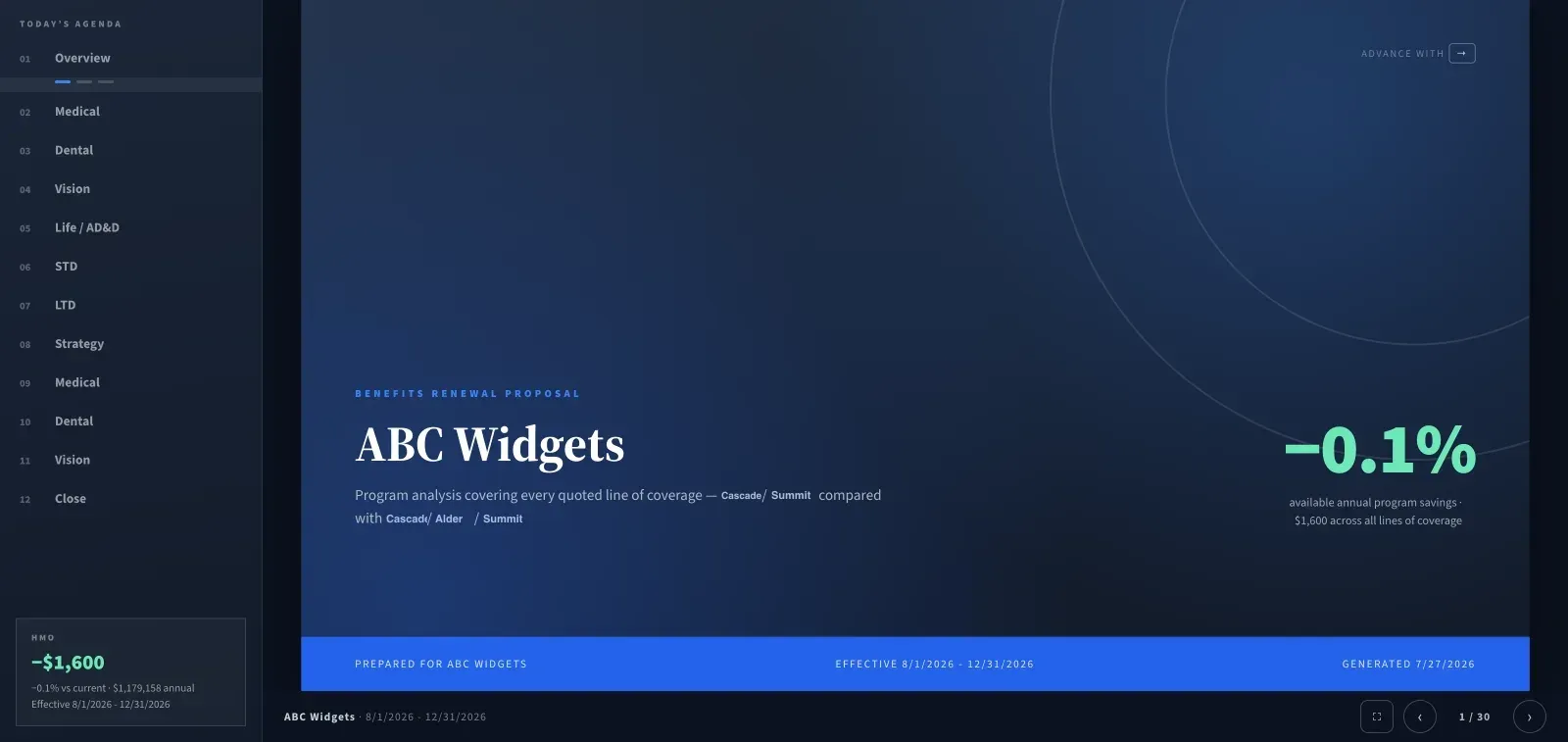
In the room
Every slide, built from the case.
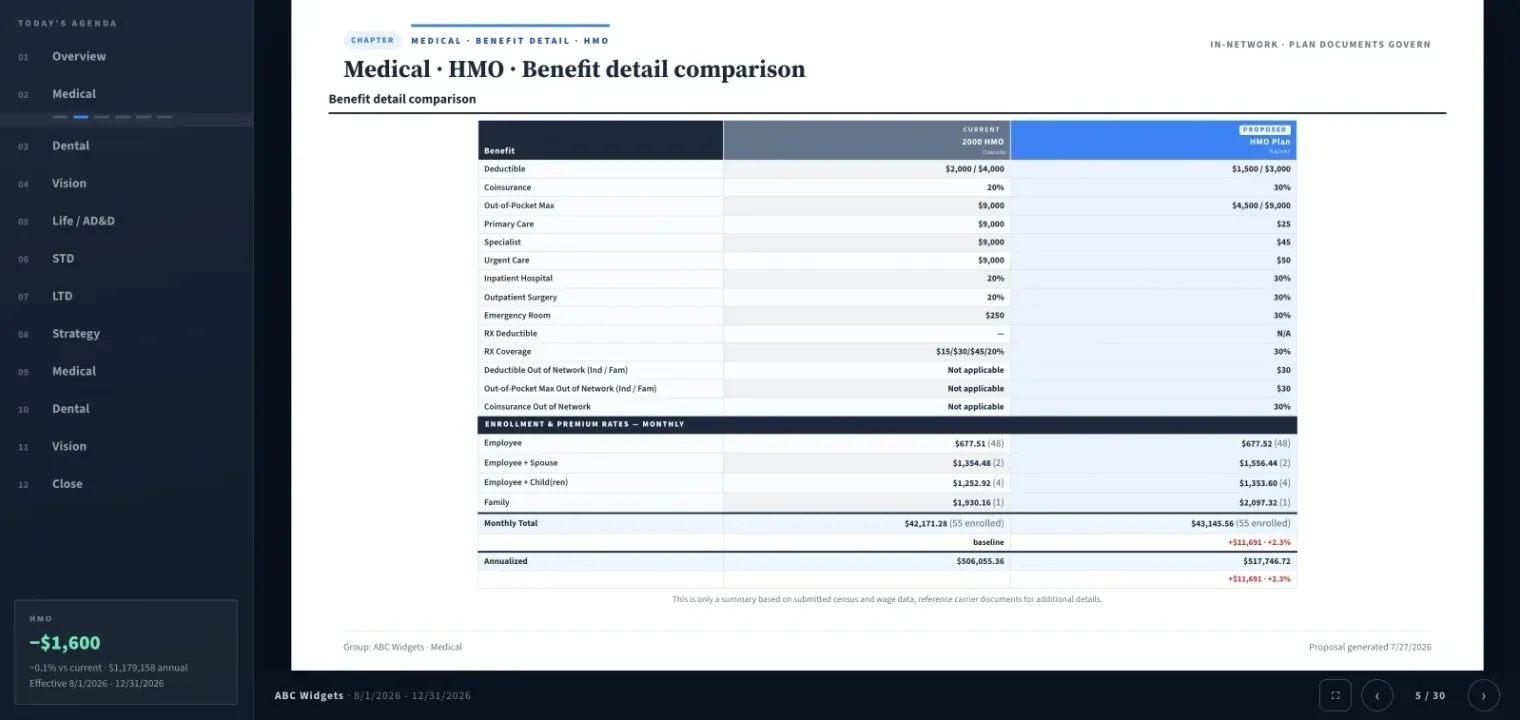
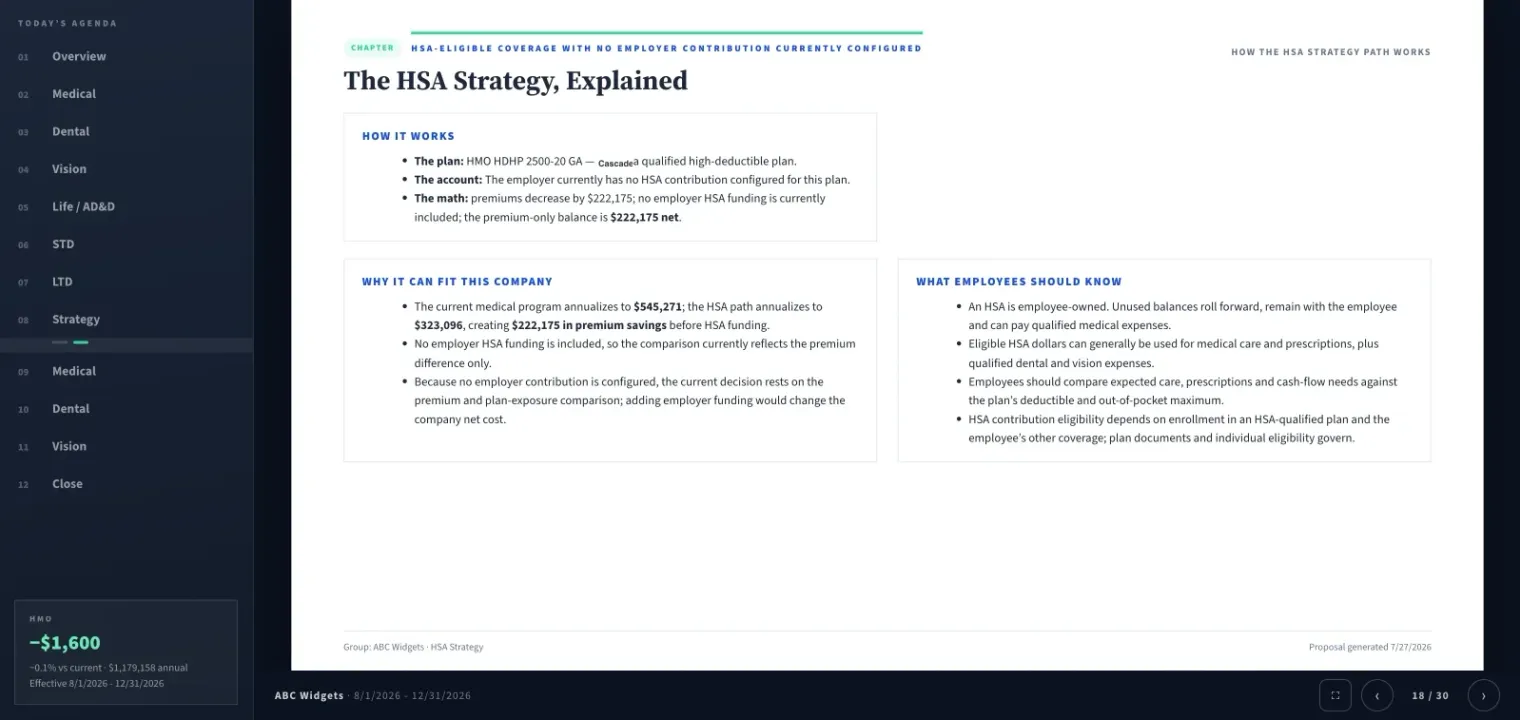
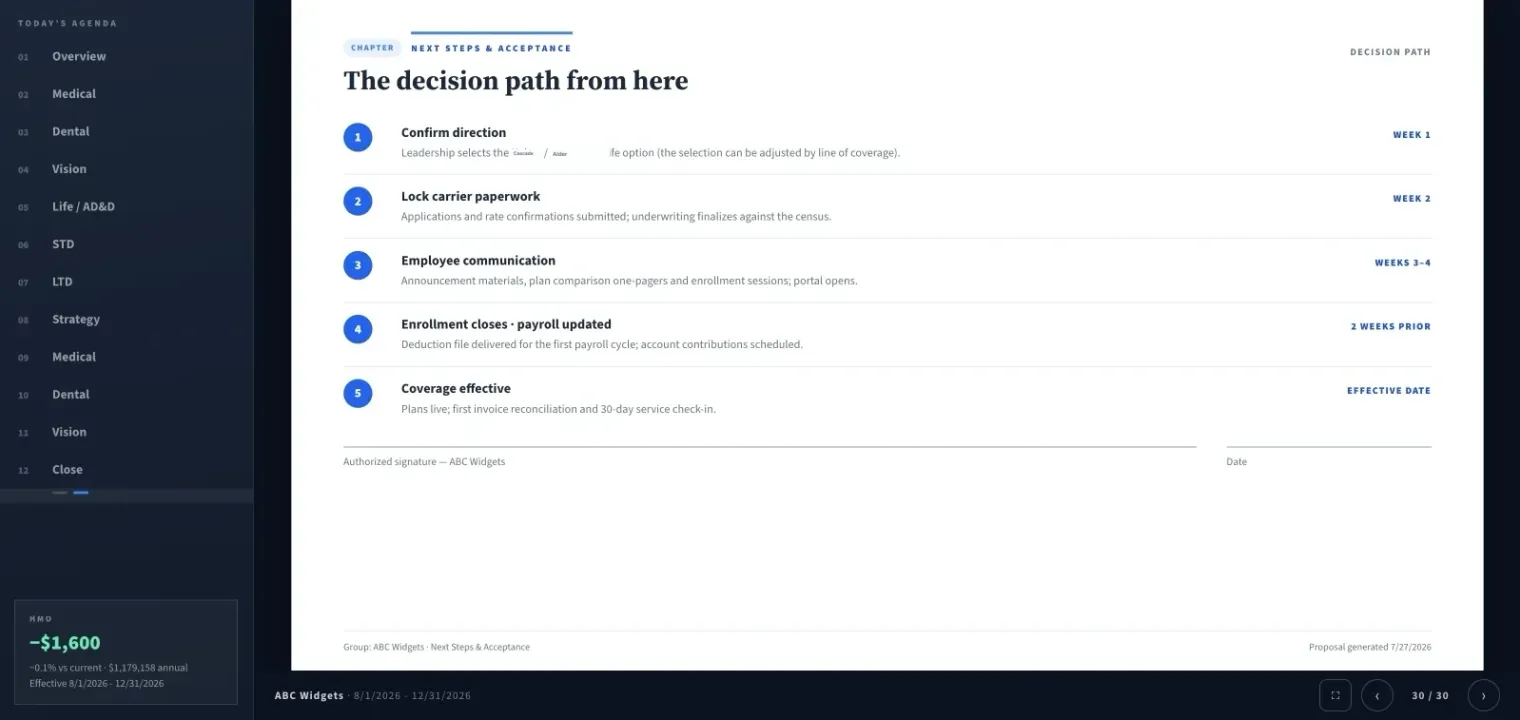
Page 1 of 3Current against proposed, with enrollment and premium rates on the same slide.
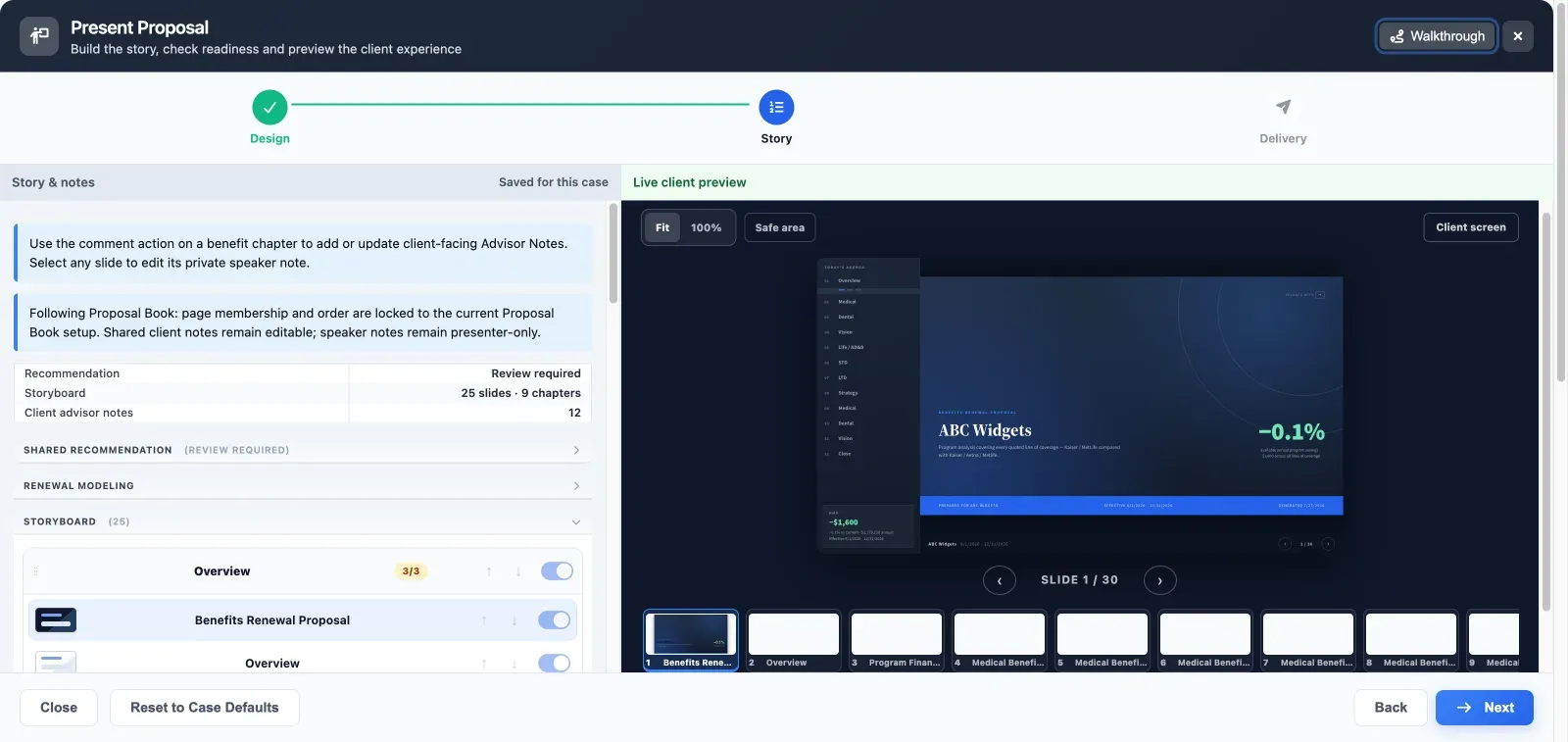
Two sets of notes. Only one is public.
Advisor notes are client-facing
Add them from the comment action on any benefit chapter. They stay on screen for the room to read.
Speaker notes stay private
Select any slide to write a note only you see while presenting.
Storyboard controls what shows
Reorder chapters and toggle individual slides off without touching the proposal book.
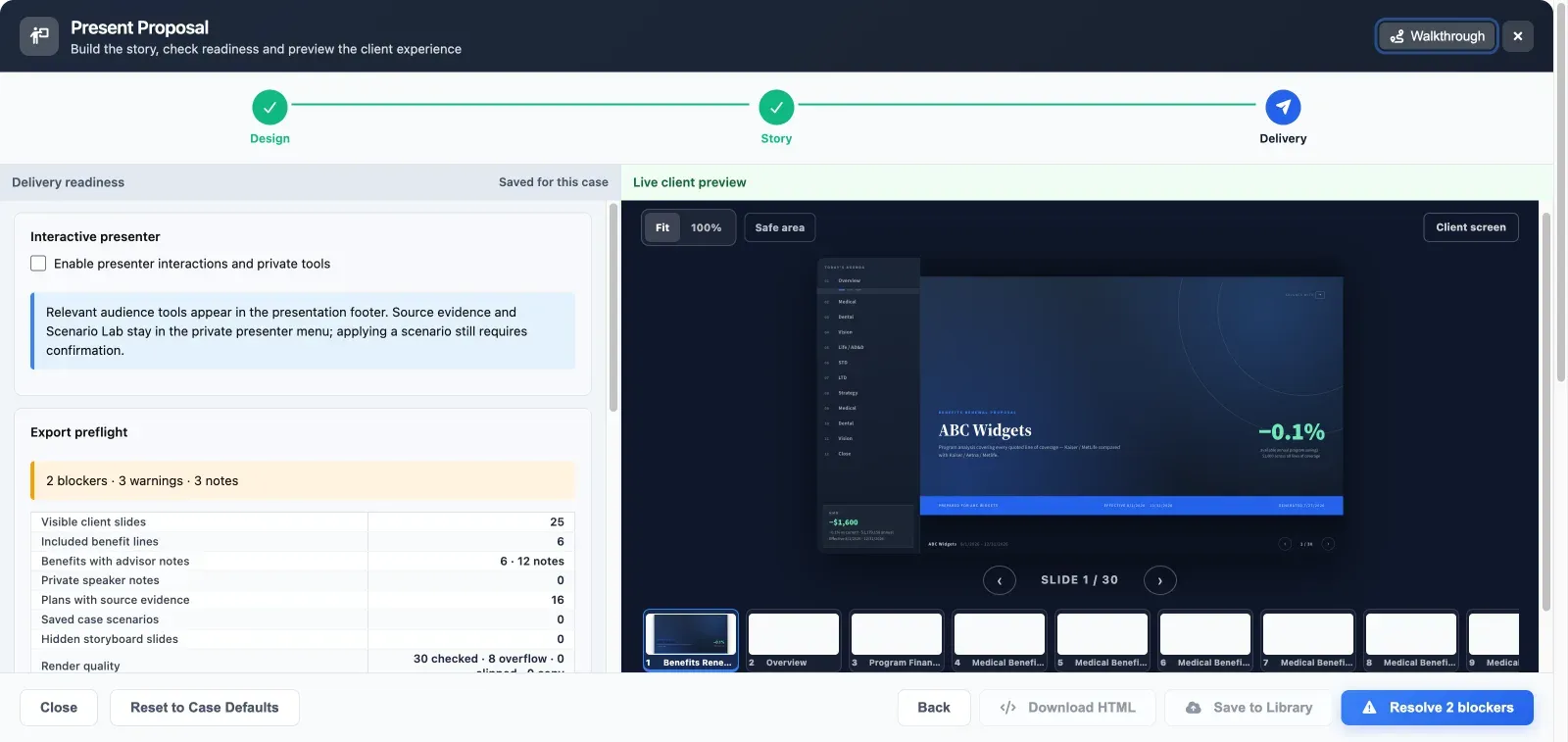
Source evidence on demand
Enable the interactive presenter and pull up the document a rate came from, mid-meeting.
Nothing goes on screen unchecked
Before you can hand the deck over, Planlined runs an export preflight and counts the blockers. It reports on:
- Visible client slides and included benefit lines
- Which benefits carry advisor notes, and how many
- Plans backed by source evidence
- Hidden storyboard slides you may have forgotten
- Render quality — every slide checked for overflow and clipping
Clear the blockers and you can download the deck as self-contained HTML or save it to your library for next renewal.
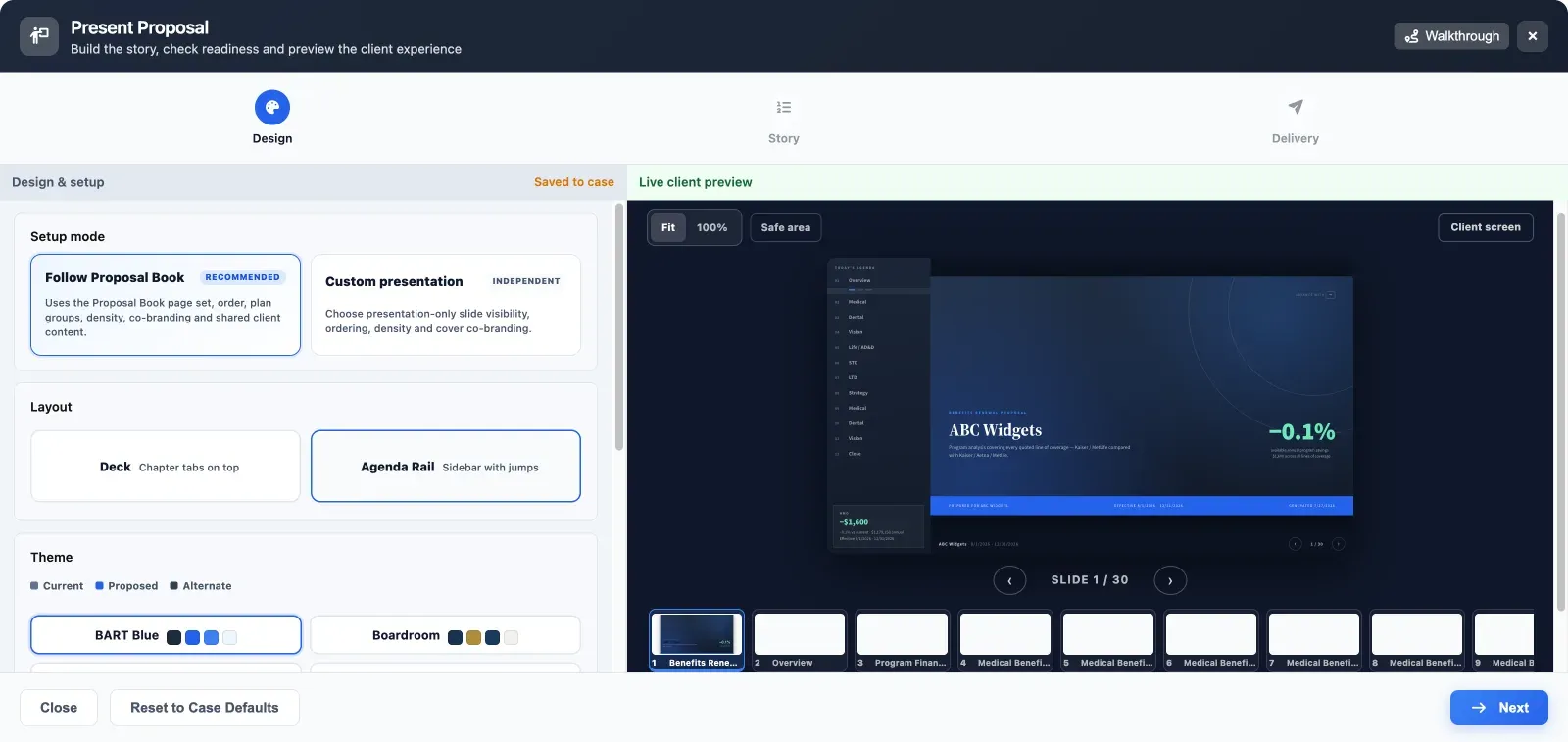
Follow the proposal book, or tell a different story
Lock the deck to the proposal book so page order, plan groups and co-branding stay in sync — or break it out into a presentation-only slide set with its own order and density.
Inputs and outputs
What goes in, what comes out.
You bring
- The approved case, and its proposal book when you lock the deck to it: page order, plan groups and co-branding.
- Advisor notes on benefit chapters, and private speaker notes on any slide.
- The source documents behind the rates, for the interactive presenter.
You get back
- A full-screen client presentation with an agenda rail, chapter jumps and the savings figure on screen.
- An export preflight that counts blockers before the deck is handed over.
- A self-contained HTML deck to download, or a copy saved to your library for next renewal.
Every accepted file type and export format is listed on the integrations, exports and API page, and the one-page summary of what Planlined is and is not lives on Planlined product facts.
When to use it
Where it fits in a renewal.
- The renewal meetingPresent the client screen to the room while your speaker notes stay visible only to you.
- A committee that skips aheadJump straight to the chapter they ask about, and use the agenda rail to bring the meeting back to where it was.
- A rate gets challengedTurn on the interactive presenter and open the carrier document the rate came from, mid-meeting.
What it does not do
- It does not export PowerPoint or Word. The deck runs in Planlined or downloads as self-contained HTML.
- Advisor notes are not private. They stay on screen for the room; anything only you should see belongs in speaker notes.
Client presentation mode questions
Do I need to rebuild the proposal in PowerPoint to present it?
No. Every Planlined case turns into a full-screen client presentation, so there is no slide file to export or keep in sync. Planlined does not produce PowerPoint files.
What is the difference between advisor notes and speaker notes?
Advisor notes are client-facing and stay on screen for the room to read. Speaker notes are private: you write them on any slide and only you see them while presenting.
Does the presentation have to follow the proposal book?
No. Lock the deck to the proposal book so page order, plan groups and co-branding stay in sync, or break it out into a presentation-only slide set with its own order and density.
Walk into the renewal meeting ready.
Build the case once. Planlined writes the book, the guide and the deck.